
It doesn't always have to be a complicated, expensive or high-maintenance interface between Navision and Business Central and Datev. If you are looking for a complete or even bidirectional interface, you will find numerous providers on the Internet.
Sometimes (even surprisingly often) it is simply sufficient to transfer the monthly postings from Navision or Business Central to Datev.
To do this "just like that", however, you need...
Requirements
The Business Central or Navision chart of accounts has the same account numbers as the Datev chart of accounts. This does not necessarily have to be an SKR03 or SKR04, but the account numbers must match.
The same applies to customer numbers and vendor numbers.
That's all there is to it! If you are comfortable with a simple interface such as this booking transfer from Navision/BC365 to Datev, but your Datev tax advisor uses different general ledger or debtor/creditor numbers, we can easily remedy this minor issue by adding a small translation to the Datev interface described here.
Caution: This tool is not bidirectional, i.e. it cannot be used to transfer data from Datev back to Navision or Business Central BC365!
Output from Navision & Business Central
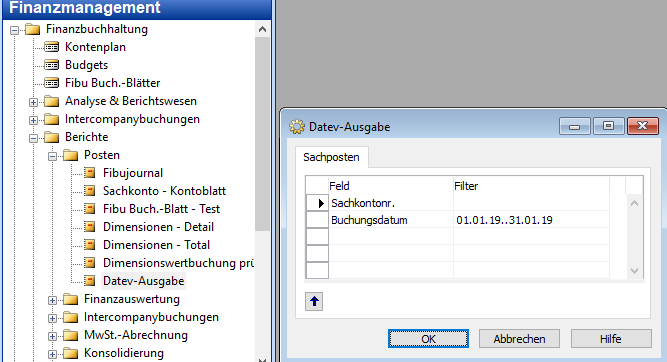
- the same customer numbers
- the same supplier numbers
- the same G/L account numbers
in Navision AND Datev
Regardless of your Datev connection, this is a clever and practical idea for everyday use anyway.
Import into Datev
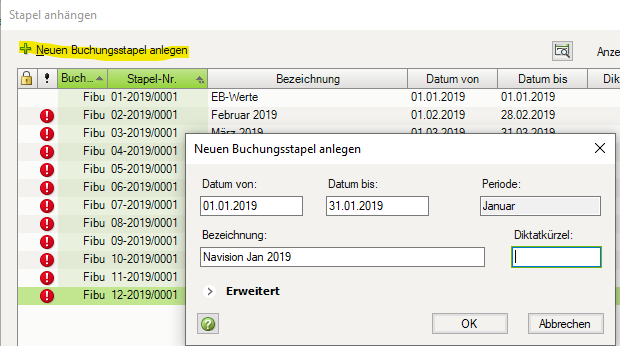
You can import the Navision datev files directly via the posting batches...
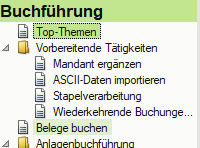
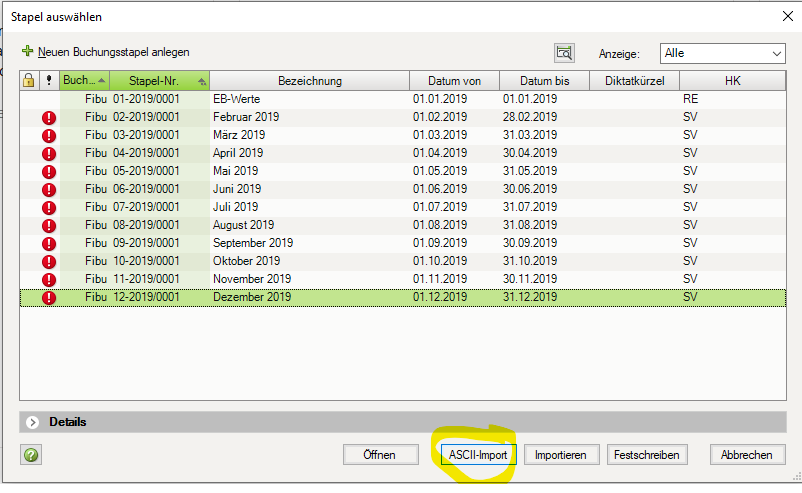
...or via the regular import function. (In both cases the same import is technically started!)
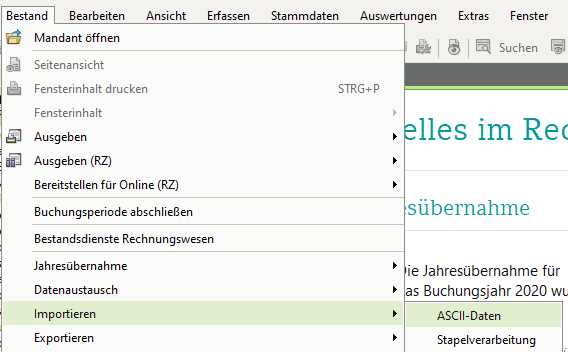
They end up being imported in both ways:
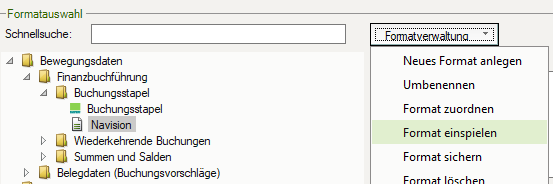
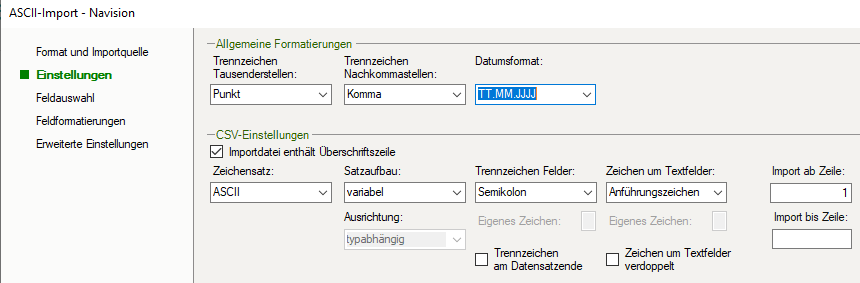
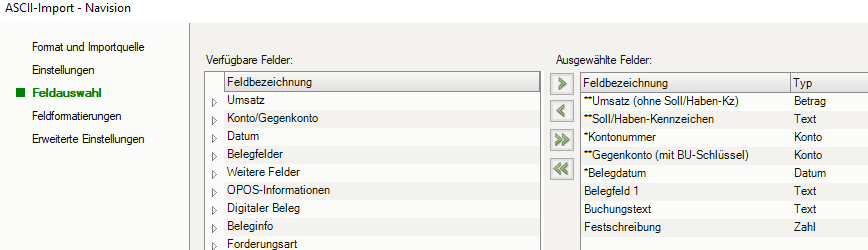
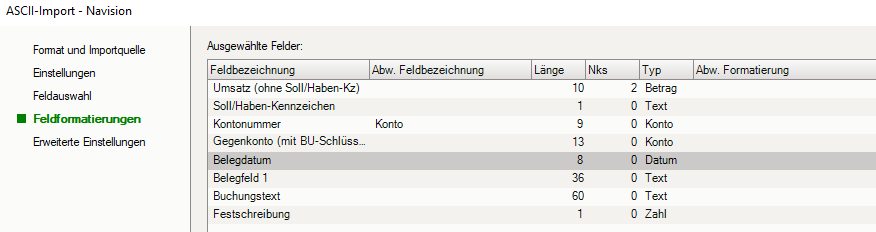
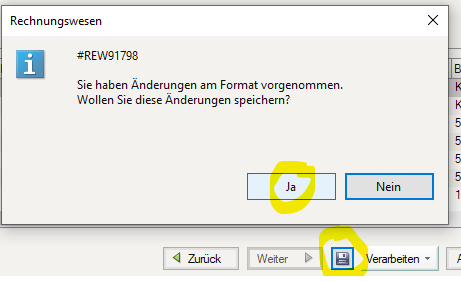
This file sets practically all the settings shown below in Datev for the Navision import. Here you will find both the file itself, packed as 7z, and the file content. You can simply copy this into an empty XML file yourself.
1
Navision
0
1
1
Bewegungsdaten|Finanzbuchführung|Buchungsstapel
.
,
TT.MM.JJJJ
C:\Temp
Datevausgabe 01.01.19..31.01.19.csv
1
0
1
106
0
1
1
10
2
Betrag
1
0
0
1
0
351
16
0
0
2
106
1
1
1
1
0
Text
1
0
0
0
0
352
1
0
0
3
107
2
Konto
1
1
9
0
Konto
1
0
0
0
0
360
9
0
0
4
107
3
1
1
13
0
Konto
1
0
0
0
0
362
13
0
0
5
108
4
1
1
8
0
Datum
0=""
1
0
0
0
0
363
10
0
0
6
109
5
1
1
36
0
Text
0
0
0
0
0
364
36
0
0
7
110
6
1
1
60
0
Text
0
0
0
0
0
368
60
0
0
8
113
7
1
1
1
0
Zahl
0
0
0
0
0
3419
1
0
0
1
1
;
"
0
variabel
typabhängig
ASCII
1
-1
0
1
0
Nevertheless, please check the following settings, especially e.g. the ASCII/Ansi setting.
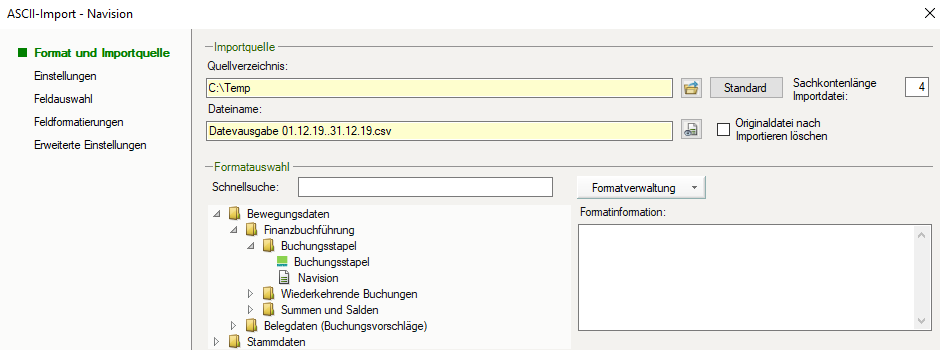
Attention! DATEV buffers the last import here! Please use the import preview to check whether DATEV displays the current version of your Navision file.
If not, please select the file name again.