

Yay, the time has come! My xRechnung solution is now ready to install & use. Here are the instructions so that everything can be done quickly.
Are you looking for further background information on the subject of xRechnung, xFactuur, ZuGPFERD, eRechnung? You can find them here.
Costs & license conditions
The interface as described below costs a one-off fee of 2,500 euros, plus setup in your database at cost. The setup in a technical 2.01 2.01b, 2.60, 3.01 Navision Financials database, i.e. all Classic Client databases under 2009R2, is considerably more complex than in Classic Client from 2009R2 or RTC Client Navision Dynamics due to the limited text length of maximum 250 bytes. There are no running costs, no maintenance. The interface is designed for the current format CrossIndustryInvoice 1.00 (CII as of Nov. 2024) or Universal Business Language UBL Invoice-2 (as of Nov. 2024). Earlier or subsequent formats can be integrated by me or by yourself (the complete source code is handed over to 100%, no hidden modules or external programs!!!) on request and if necessary for an expense allowance. Likewise adaptations to retailer-specific details of these formats (which should not actually exist!!).
Importing xinvoices
Requirements for using this xRechnung (eRechnung) solution
- A compatible client currency code is entered in your financial accounting system - this should be EUR.
- Maintain supplier references such as supplier article numbers!
- Use ISO units for country codes (e.g.: DE for Germany) & ISO units for item units. However, not everyone likes to maintain C62 for units. Here Navision can fall back on the ISO codes column in the units.
- Maintain the VAT ID in your suppliers and customers.
- Do you have invoice discounts or surcharges? Please contact me separately, these may have to be calculated/considered separately in the outgoing xInvoice xml.
Important note for the live start with xRechnung from 1.1.205
So far I have been able to work with my test customers no need possible to obtain real test files from real suppliers! All tests were therefore carried out with sample files created with various xRechnung generators (but matching real purchase orders from real customers).
It is therefore imperative to assume that the first few days in 2025 will be somewhat „rough“ and that there is still rework to be done.
The changes themselves are provided free of charge if they result from the UBL or CII format. The integration of the changes into your specific xRechnung import (or output) can be carried out by yourself (you will be provided with all source codes without exception), or - as usual - by me at cost.
Setting up the xRechnung XML file import
Setup of xRechnung incoming invoices in Navision Classic Client (2.60, 4.0, 2009R2 etc.)
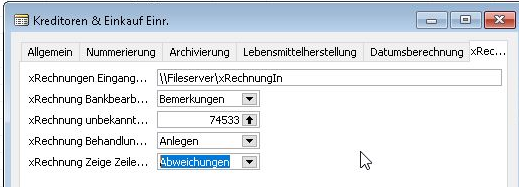
Setting up xRechnung incoming invoices in Navision Dynamics RTC (versions 2013 to 2018R2)
The fields all have short tooltips for a quick overview.
- xInvoice input path: In which path are the incoming x-invoice files stored. Navision searches this folder for XML files, which are then read in as invoices.
- xInvoice bank processingBank details can be stored in xInvoices. Here you specify what Navision should do with any existing bank details if these bank details are not yet stored with the identified vendor.
IgnoreThe bank details possibly contained in the xRechnung XML file are simply ignored.
RemarksThe bank details possibly contained in the xRechnung XML file are stored as text in the invoice remarks.
(Follows: This can then be stored as real bank details for the vendor via an extra function in the invoice remarks).
CreateThe bank details possibly contained in the xRechnung XML file are stored directly with the identified vendor. - xInvoice from unknown vendorThe xInvoice import function attempts to identify the correct vendor using the order number contained in the xInvoice XML file. If this is not successful, the VAT ID also (hopefully) contained in the xInvoice XML file is used. If both fail, Navision will at least import the invoice as a „pseudo invoice“ (which is also a complete Navision purchase invoice!) with this vendor number. If no emergency vendor is stored here, and if recognition based on the (possibly missing) order number or VAT ID is not possible, the xInvoice XML file is given the file ID *.err (ERRor) and must then be edited manually or renamed again.
If Navision uses this emergency vendor number (filled in this way), the supplier data found in the invoice file, such as name, address, e-mail address, etc., are stored in the invoice remarks.
(Will follow on request or if required): A vendor can be created from this saved data via a function in the incoming invoice remarks, and the incoming invoice is then automatically rewritten to this new vendor).
(Will follow on request or if required): This purchase invoice can be assigned to another vendor via a function in the incoming invoice remarks. In this case, the saved VAT ID is also assigned to this other vendor if the vendor has not yet saved a VAT ID. - xInvoice Treatment of unknown vendor:
SkipThe XML file is given the identifier *.err(ERRor) and must then be edited manually.
File in remarks: In this case, the field xInvoice from unknown vendor must be filled in. Navision reads the xInvoice with the vendor number from this field and stores the information found in the invoice remarks for further processing. (*)
CreateNavision automatically creates a new vendor. The posting groups are taken from the country code table or other default settings. (*) - xInvoice Show line detailsYou can select whether the raw data of the XML file is displayed when...
I) Never
II) If there are discrepancies in the final amount (this automatically integrates discrepancies if the quantity is incorrect or the discount is wrong)
III) Always (e.g. for test purposes) - xInvoice behavior:
Inactive: No xinvoices are read in
Show XML content: The recognized content of the XML file is displayed in a filterable Navision table (helpful for troubleshooting)
Import invoicesThe initial invoice recognized in the respective XML file is read in.
Show & ImportThe last two points are carried out together.
(*): There is not enough data available in the CII (CrossIndustryInvoice, Cross Industry Invoice) file format to create a vendor automatically. This feature can only be used to its full extent with the incoming Universal Business Language (UBL Invoice-2) file format.
Importing incoming xinvoices
The incoming files can be automatically transferred via e.g. my scheduler or the Navision job queue, in the RTC versions via the task queue items. However, I recommend starting the import of incoming invoices manually, especially in the early days, all the more so as you will be presented with each individual incoming invoice in this case from Navision Dynamics (e.g. 2.60, 4.0, 2009R2) or Business Central 365 (Navision 2013, 2015, 2017, 2018 etc.) and thus get a quick feel for which data you should still maintain in the future in order to really save work with xRechnung.
For the scheduler or the task queue items, please enter the code unit 58000 (may vary depending on the installation, just contact me if in doubt) in the task list.
To start manually, please call up the „Import xInvoice“ function in any x purchase invoice:
xInvoice import function in Navision Financials Classic Client (2.60, 4.03, 2005, 2009R2 etc):
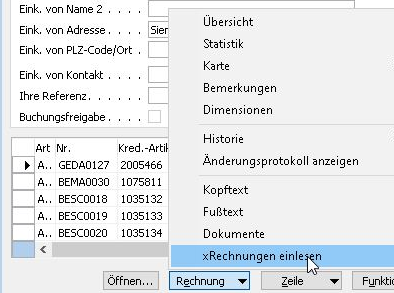
Screenshot
Assignment to existing purchase deliveries: Navision tries to do this automatically:
- Identify your correct article number using the supplier article number contained in the xInvoice.
- Assign a suitable purchase delivery (I: Matching the transferred order number from the xInvoice II: Not yet invoiced and correct article number, the oldest incoming delivery first).
- If 2 is not successful, an incoming invoice is created based on the recognized data.
- (Implementation if required, please contact me) The system searches for a suitable, unbooked purchase order and then books it. This function is intended as a stopgap if you do not have a clean goods receipt.
Menu command „xRead invoice“ (not in the screenshot) (singular instead of plural!): Here Navision opens a file selection dialog with which you can select a very specific XML file to be imported. This can be useful if your purchasing clerks process invoices from suppliers, e.g. by initial letter or by change or whatever.
Improved detection performance
With the following settings and working methods, you can make automatic allocation easier for Navision. This will save you an enormous amount of processing time for your incoming goods invoices! Trust me: If you and your suppliers play along, you can reduce the working time for an incoming invoice to zero (fully automatic) to a few seconds. Really!


Do you want even more fun at work here? Take a look at my GetMyInvoice integration to!
- No use of various articles or various suppliers. These immediately prevent any simplification of work. Not only when recording purchase invoices, but also in everyday life, e.g. also for automatic order proposals.
- File the VAT ID with your suppliers. You would need this anyway for a secure input tax deduction. The xRechnung depends on this VAT ID to automatically assign your vendors (suppliers) correctly if the order number has not been assigned or has not been entered/specified by the supplier.
- Ask your supplier for precise individual invoices instead of collective invoices. This makes automatic (and manual) allocation much easier.
- Ask your supplier to always include your order number with every order.
- The previous point almost automatically leads to an underestimated point: record all your orders in Navision! No exceptions, no web store, no telephone orders. Take this point just as seriously as „No miscellaneous suppliers & articles“.
An order that does not exist in Navision cannot be determined by Navision. It's as simple as that. - Think of your customers too! Avoid collective invoices on the sales side and - if possible - also record the customer order number.
- Talk to your suppliers/customers about whether you can order & invoice in base units. 12,000 units are actually always 12,000 units, just as 500 liters are actually always 500 liters. With 12 „containers“ or 750 „bottles“, however, the consensus can quickly be lost. Documents are more difficult to read this way, but the more the documents are no longer processed by people, but by machines, WMS (warehouse management system), packing lines, xInvoice, EDI, the less important this argument becomes. If not, it is definitely helpful to adapt your purchasing unit (and only this one) to that of the supplier. And: Yes, it can change!
Do you have further suggestions for improving automatic document allocation from your practice? Talk to me and we'll incorporate them!
Output of customer invoices in xInvoice
xRechnung is almost identical to Factur-X and essentially also the embedded XML standard of ZUGPFeRD.
Requirements
- You are already sending Customer invoices by e-mail, e.g. via this solution. The xRechnung XML file is simply packed in parallel with the existing PDF invoice, so that the customer has both processing options without any further consultation or agreement. This means that you do not have to make any queries, interviews or settings, and your customers can simply choose what they prefer without any further consultation.
- Maintain „our account no.“ in your customer base, and maintain customer & supplier references such as article numbers!
- Please also note the requirements at the beginning of this article.
You simply activate the outgoing xInvoices in your Accounts Receivable & Sales setup via „Activate xInvoice“ - That's it. From now on, the xml xRechnung will also be attached to every PDF file mail. In this way, you automatically provide all your customers with an xInvoice without any queries. And your customers can decide at any time which document format they want to process themselves without any further inquiry. Of course, this behavior can also be easily adapted to your requirements - Talk to me about it!
Technical note: the outgoing XML files for the xRechnung are written in the Universal Business Language (UBL Invoice-2) file format. This allows you to provide your customers with more information and makes it easier for them to import your files.

By AYL - Own work, CC BY-SA 3.0, https://commons.wikimedia.org/w/index.php?curid=12273214