

Create PDF files from any Navision
Attention! These instructions are OUTDATED! Since Windows 10, there is a suitable printer driver directly in the operating system. This is a little slower (really!) than the solution described here, but it doesn't require any more tricks. You can find the corresponding installation instructions here. However, if you have XP or Windows 98 or Windows Server 2003 or similar operating systems, so that you can continue to operate Navision 2.60, Navision Financials 2.01, 3.70 etc., you still need the Ghostscript PDF printer driver! Please scroll down to the bottom, where you will find the necessary instructions. For Windows 10, Windows 11, Windows Server 2023 etc. you will find the instructions starting here.
With Ghostscript you can create PDF files directly from Navision. This mainly applies to older Navision versions from 3.53 to 3.56 (DOS versions) via Navision 2.01 to 2009R2. Navision RTC can automatically output every report as a PDF.
However, you need a printer driver that also generates clean Postscript (the basic language of PDF). Preferably also one that can output color and large formats such as A3, then you have everything done in one fell swoop.
For Navision versions below 4.03 (i.e. 2.01, the DOS versions, Navision 2.60, Navision Financials 3.70 etc.), these instructions are still the first choice, as these Navision versions do not run under Windows 11 or Windows Server 2023.
Printing, mailing & faxing from Navision - all together with our tools for the native Navision versions and Ghostscript.
Note: Once Ghostscript has been set up, you can of course also split PDF documents into individual pages, combine individual PDF pages in any order to create new PDF documents, combine background pages with foreground pages and much more. And: You can control the whole thing in Navision, e.g. to generate catalog documents even more easily.
Replacement for Adobe Universal Postscript Printerdriver
In the past, the Adobe Universal PostScript Windows Driver could be used for the following Postscript printer driver. Which in fact was not a printer driver at all, but simply a small exe file which (as in this manual) registered the Microsoft Postscript (PSCRIPT5 or PSCRIPT.OEM) driver under a new name. This setup was only intended for Windows 95, 08, Nt 2000 and so on, and has since been completely discontinued by Adobe.
Setting up the necessary PDF Postscript printer driver under Windows 10 etc.
Setting up the Postscript printer driver:
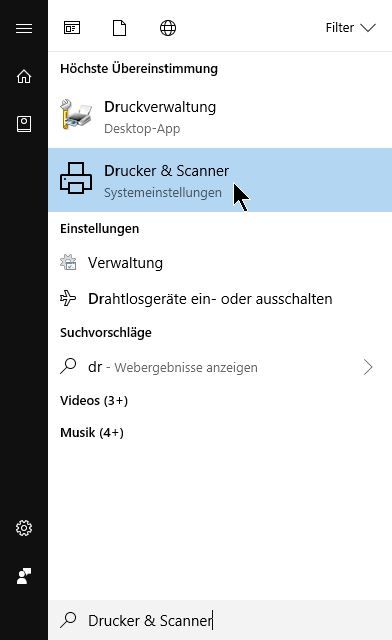
Press CTRL+ESC: The Windows start menu opens. Now simply type the three letters P R I on the keyboard and Windows will suggest "Printers & Scanners". Click on "Printer & Scanner":
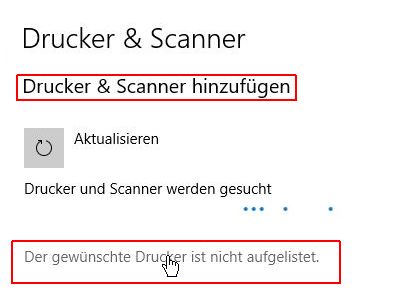
In the dialog that opens, first click on "Add printer & scanner". Windows builds up the printer list. After a few seconds, the additional text "The desired printer is not listed" appears. Please click on this:
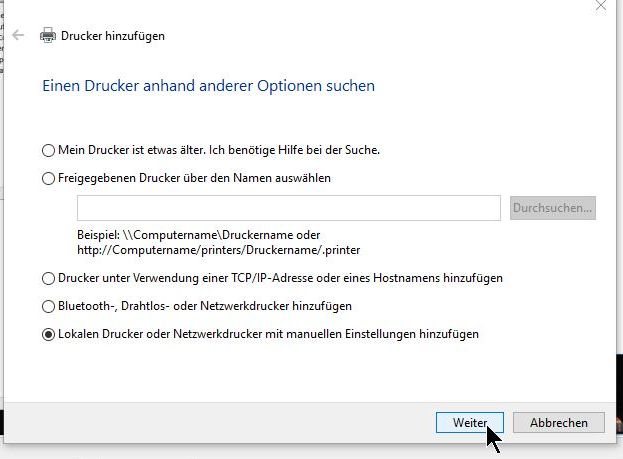
In the following dialog, select the lower option "Add local printer or network printer with manual settings", then "Next":
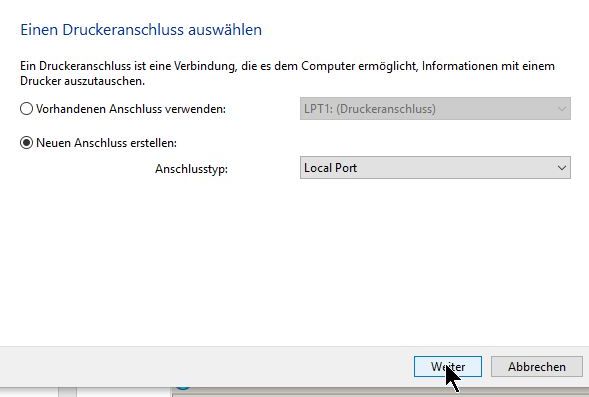
Now select "Create new port", enter "Local Port" as the option, then "Next":
Windows then asks for the output destination:
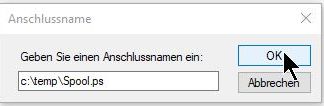
(of course, the folder c:\temp must also exist for this!)
The driver should be as universal a Postscript printer driver as possible, the HP Color 5550 Class Driver PS included in the standard Windows is NO longer an alternative! The important "print directly to port" cannot be configured here as this is an XPS driver. However, XPS requires the use of the print spooler.
New recommendation: Manufacturer Generic, printer C MF310P-1 PS. You can find it via "Windows Update":
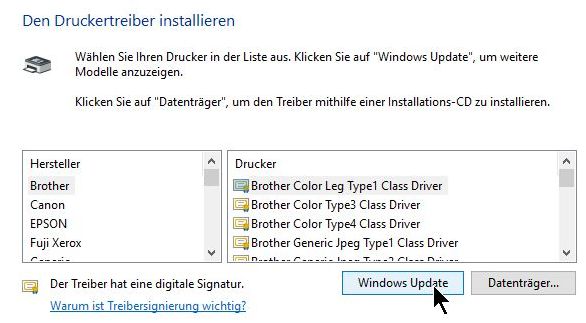
This process "The printer list is being updated" will take several minutes, 15 minutes has already been experienced. You must wait for this time, the process cannot be accelerated. Then select "Generic" on the left under Manufacturer, then Printer C MF310P-1 PS on the right:
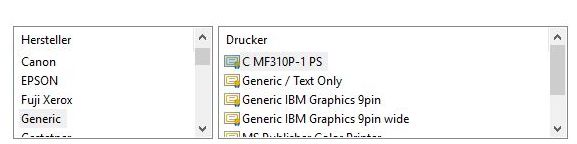
Attention! The selection of both internal printers and printers accessible via Windows Update changes constantly.
Here are some rules of thumb for a usable printer driver (it all depends on the driver!):
- The name does NOT contain XPS or GDI
- The name contains c or color
- The printer model can print A3 .
Apart from the first point, a simpler printer can of course also be selected depending on the application. Other alternatives: Epson EPSON AL-C8500 PS3, HP Color LaserJet 2800 Series PS.
Click "Next".
Change the printer name to NavisionPS:
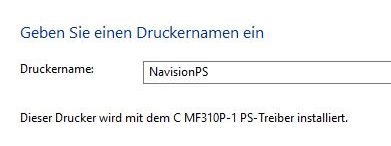
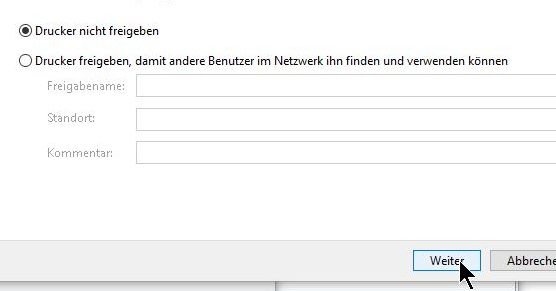
Do NOT share the printer and CONTINUE. If Windows gives you the message "The printer driver has NOT been installed", simply try again and it will usually work. The error was then simply a problem downloading the driver from Microsoft, e.g. due to a weak or overloaded Internet connection.
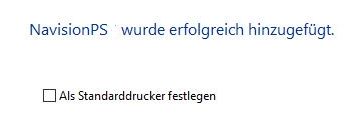
Set as default printer is no need necessary nor useful.
The printer spooler must still be switched off.
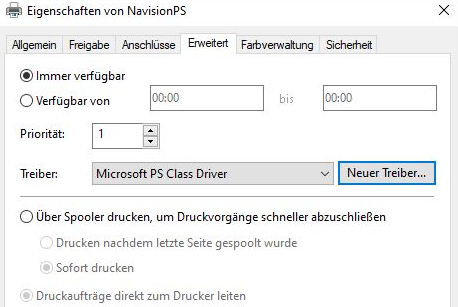
Click on Printer/Manage/Printer Properties/Advanced:
Select "Print directly to connection".
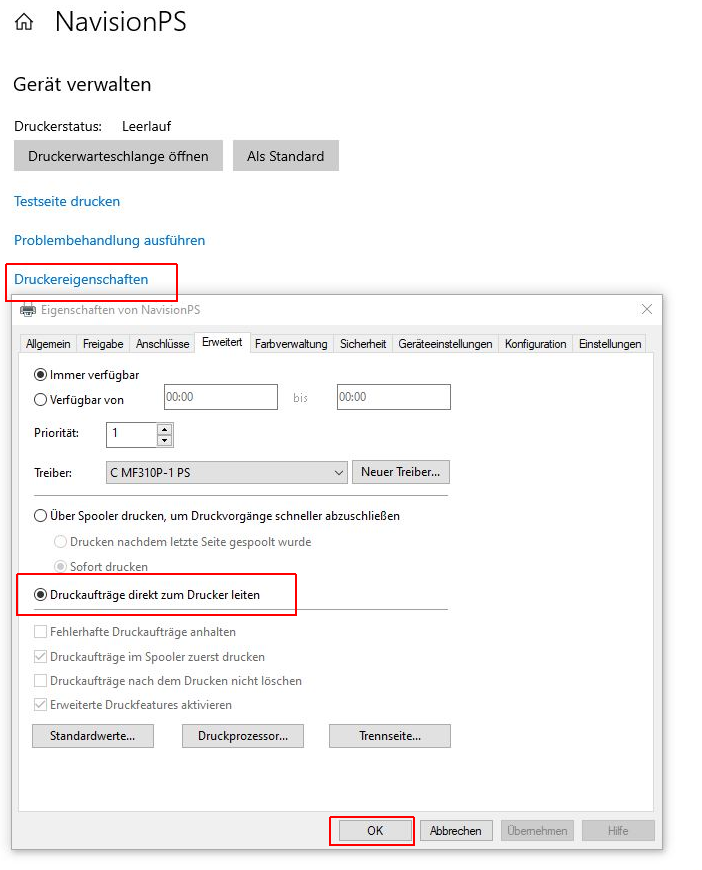
If the option is grayed out, there are several possibilities:
- You do not have permission to change printer settings. If you have carried out the steps up to this point, this is not possible.
- The printer is a network printer.
If you have carried out the steps up to this point, this is not possible. - The printer driver is an XPS (XML Paper Specification, a planned replacement from Microsoft for the PDF format) driver. This is absolutely dependent on the spooler; printing directly is therefore generally not possible..
- The printer driver is a rather old and/or cheap GDI (GDI explanation) printer. This is also dependent on the spooler service, among other things.
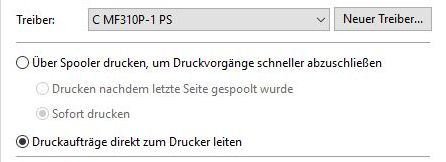
If "route print jobs directly to the printer" simply doesn't work...
Extra tip: If the printer driver recommended above scales incorrectly, for example, you can replace it AFTER this installation with the original Microsoft PS driver. AFTER is important because you cannot set the option "Route print jobs directly to the printer" with the Microsoft driver. Funnily enough, however, Windows adopts the previously set setting from the recommended PS driver without any problems:
Installing the Windows XP PDF Ghostscript Postscript Printer Driver
xRechnung has made it necessary again! There are still numerous 2.01s (also technically!), 2.60s, 3s Navision Financials out there... And they also have to be able to issue xRechnung / eRechnungen.
This is not so tragic at first, as my solution „only“ creates UBL in XML as a file attachment to the mails with the PDF invoice mail that has been generated „forever“ anyway. And yet, there was a time when even users of these somewhat outdated Navision Financial versions still did not issue PDF invoices... and that in the 21st century. Here and there a retailer probably said „That works with this old Navision no longer, You need to buy a new one.
That is - in this form - nonsense. There are still debits and credits, articles still have stocks and special prices... A merchandise management system is simply not a graphics card driver, which firstly is full of errors and secondly only runs with regular updates. Navision Financials 2.01 was one of the most stable versions ever released and (together with 2009 R2) also one of the easiest and fastest to program.
And: Of course they can also output PDF! Especially, for example, in connection with my xinvoicing solution, this is the „all-round carefree“ solution.“ Solution.
By the way: Do you need to install an older Navision version on a virtual environment such as XP, or with e.g. Navision Financials 4.03, Navision 2005 or 2009 brand new on a SQL Server? Here you will find many handouts for these older (but not old!) Navision Financials solutions.
Start the start menu with Ctrl+ESC or by clicking on „Start“:
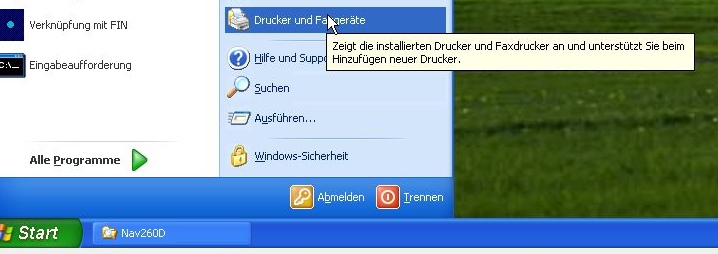
Click on „Add printer„, then on “Next"
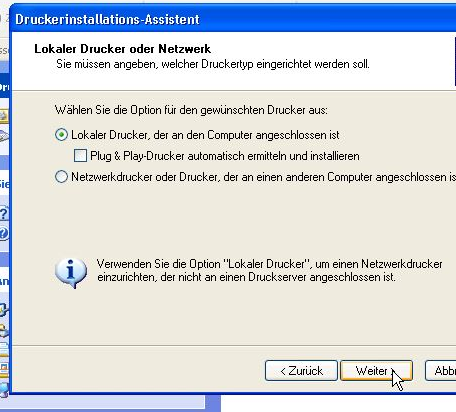
Please make the following settings (the connection name is „c:\temp\NavPdf\Navision.ps“) (please remember to create both the Temp folder and the NavPdf subfolder on drive C: beforehand!) and then click on „Next“
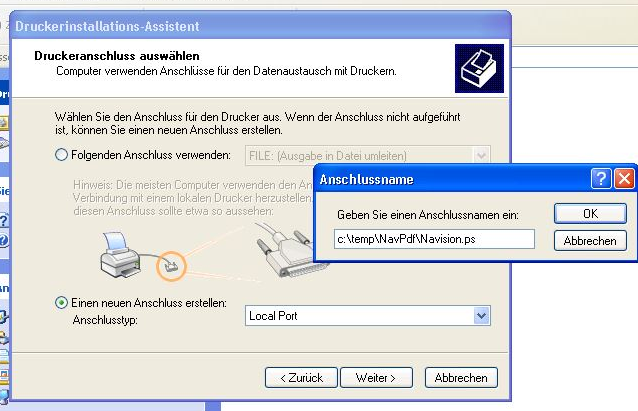
Now select, for example, the manufacturer „Apple“ and the printer „Apple LaserWriter 16/600 PS“, then „Next“. Please change the printer name to „NavisionPS“ (without dots or quotation marks), then Next, then „Do not release printer“, then Next, then Yes (print test page), then Next, then Finish.
You can also download a really good PCL printer driver directly from Ghostscript, you can find it here: https://ghostscript.com/releases/gpcldnld.html, then press the link to GhostPCL AGPL Release in addition to the 32Bit PCL version.
Please confirm the message that a test page has been printed and check whether this test page has been created in c:\temp\NavPdf under the name Navision.ps. Press OK.
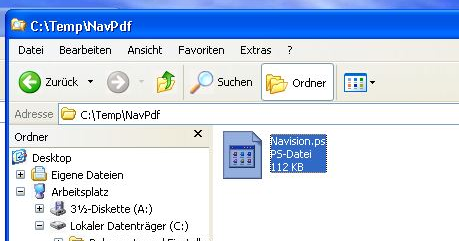
You also need to install Ghostscript, please proceed as follows:
download the 32Bit (!!!) version of Ghostscript, e.g. from here: https://ghostscript.com/releases/gsdnld.html
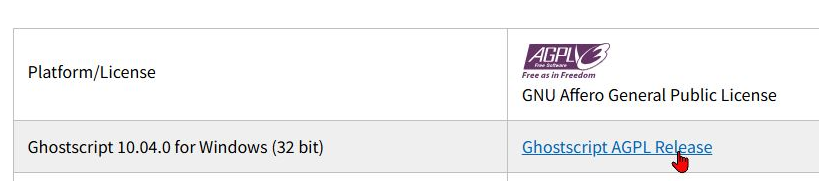
I recommend urgent, these downloads no need with the XP client!!! If you have problems getting the downloaded printer files into the XP session, please look here.
Then install Ghostscript in the folder „C:\Programme\gs“. I recommend here no need to use the suggested path, as you will then also have to change the path in Navision Financials with every update.
That's it, the rest is controlled by Navision. Happy PDF creation!